Buying a tablet for a child: kids edition or ordinary tablet, and the controls that matter
Whether to buy a kids edition or an ordinary tablet, how Apple, Google and Amazon parental controls compare, what to lock down on day one, and how to handle screen time.
By Sam · Updated 5 November 2026
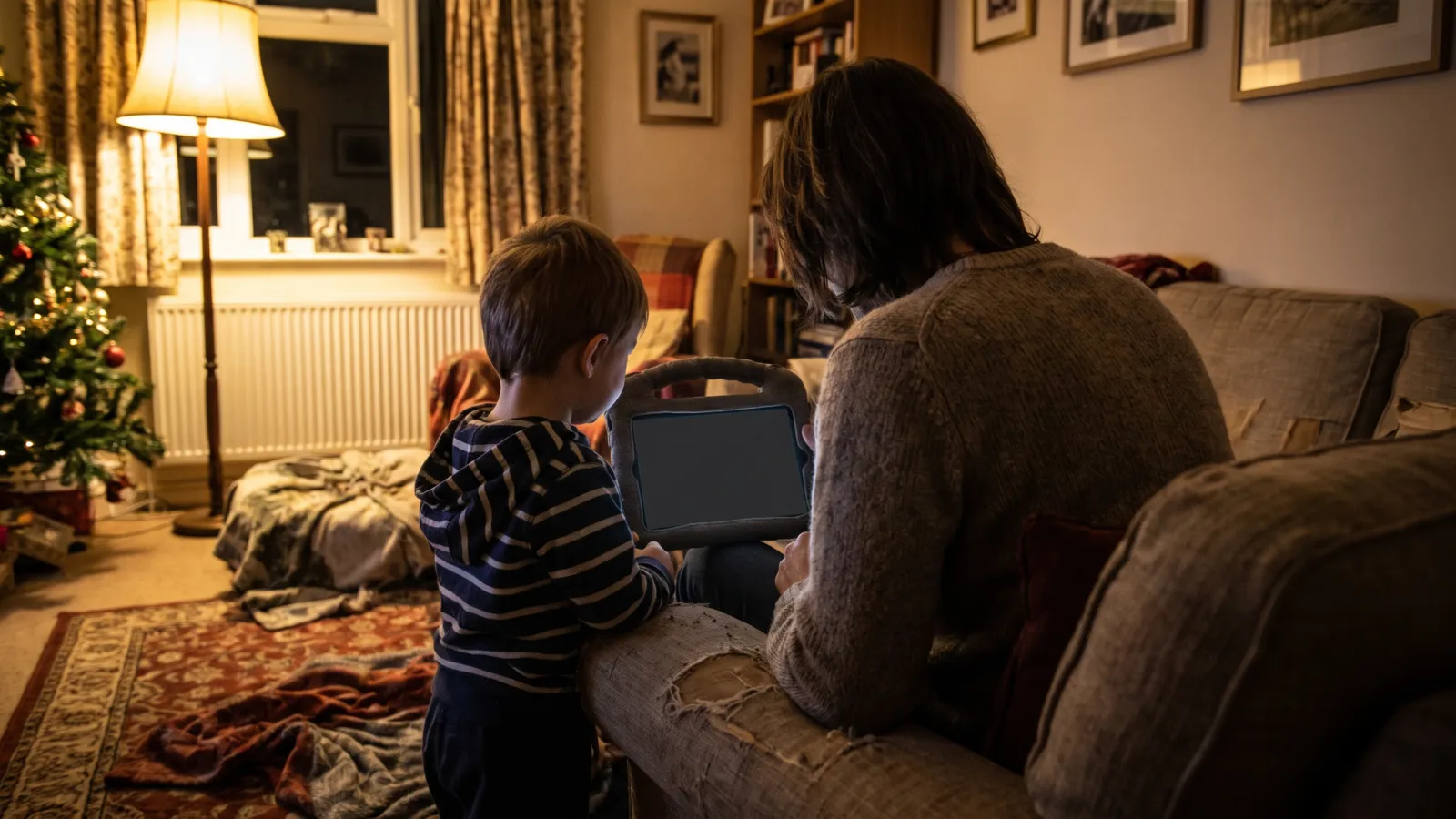
- A kids edition is an ordinary tablet with a chunky case, a child profile and a curated content bundle. It suits children up to about seven. An ordinary tablet with a child account set up properly works for any age and lasts longer.
- The controls that matter are the same on every platform: a child account in a family group, purchase approval, app and web filters, and time limits. Apple calls these Screen Time and Ask to Buy; Google's are in Family Link; Amazon's are in its kids profiles.
- Set the account up before you wrap it. Apple requires a Child Account for under-13s and turns Ask to Buy on by default. Family Link works the same way for Google accounts for under-13s.
- Which? puts the price range at under £100 for entry-level Fire tablets to more than ten times that for a top iPad, and calls around £350 the sweet spot for quality. For a child, the budget end is usually enough.
- Screen time is a habits question more than a settings one. The NSPCC's advice is to agree boundaries as a family, keep bedrooms screen-free overnight and focus on balance rather than minutes.
Kids edition or ordinary tablet?
There are really only three families of tablet in UK shops: Apple's iPad, Android tablets from Samsung and others, and Amazon's Fire range. Which? describes the spread: "There's an enormous range of tablets, from entry-level Amazon Fire tablets that cost less than £100 to high-end iPad Pros that cost more than ten times that." Amazon is the only one of the three that sells a dedicated kids edition, which is a standard Fire tablet with a thick foam case, a handle or stand, a child profile set up out of the box and a bundled subscription to its children's content. Apple and Google do not sell a kids version; instead you buy the ordinary device and set up a child account.
The kids edition pitch is convenience and durability. The case survives being dropped, the child profile hides the grown-up parts of the tablet, and the content library gives a young child a walled garden of books, games and video. For a three- to seven-year-old who will mostly watch, draw and play simple games, that is a reasonable fit, and it is the cheapest route into a tablet by some distance.
The case against is that the child grows out of it. By eight or nine, children want the apps their friends have, want to use the tablet for homework, and find the curated library babyish. At that point the Fire's limited app store becomes the constraint. An iPad or a mainstream Android tablet bought with a child account has a far bigger pool of apps, gets software updates for longer, and can simply have its restrictions relaxed as the child matures instead of being replaced.
A middle path that many families take: an ordinary tablet, a rugged third-party case (which is the kids edition's real secret), and the platform's own family controls set up properly. The rest of this guide is about how to do that on each platform, because the controls are what make an ordinary tablet suitable for a child.
Our picks for this guide
 Photo: Amazon
A three to five year old who loves bedtime stories and parents who want no screen involved.
as of 23 Nov 2026, 18:27 GMT · Details
Product prices and availability are accurate as of the date/time indicated and are subject to change. Any price and availability information displayed on Amazon.co.uk at the time of purchase will apply to the purchase of this product. Photo: Amazon
A child of three or more who likes stories in the car, on holiday and in bed.
as of 23 Nov 2026, 18:27 GMT · Details
Product prices and availability are accurate as of the date/time indicated and are subject to change. Any price and availability information displayed on Amazon.co.uk at the time of purchase will apply to the purchase of this product. Photo: Amazon
A child of four to nine who wants to take photos and have something to hold afterwards.
as of 23 Nov 2026, 18:27 GMT · Details
Product prices and availability are accurate as of the date/time indicated and are subject to change. Any price and availability information displayed on Amazon.co.uk at the time of purchase will apply to the purchase of this product.What a child account does, and why it comes first
Every platform's parental controls hang off the same idea: the child has their own account, it is marked as a child's, and it sits inside a family group that a parent manages. Without that structure, time limits and purchase approvals either do not exist or can be switched off by the child.
Apple is explicit about the order. Its families page says: "The first and most important step for a parent or guardian is to set up a Child Account with Family Sharing." Apple's support page on Screen Time adds that the child must not share an account: "It's important that your child has their own Apple Account, and isn't sharing an account with anyone else, like another family member." A Child Account is required for children under 13 and available up to 18.
Google's equivalent is a Google Account for the child managed through Family Link, which Google describes as giving parents access "to manage your child's account and data settings", including the ability to reset the password or delete the account. Amazon's Fire tablets use child profiles under the parent's Amazon account rather than separate accounts, which is simpler but means the parent's account is the one logged in underneath.
The practical consequence: do the setup yourself, on your own phone or computer, before the child touches the tablet. If you hand over a tablet signed into your own account 'just for now', the child has your purchasing power, your email and your photos, and moving them to a child account later means wiping and starting again. Our kids tech gift guide assumes a parent will do this setup; none of the devices on it are safe to hand over straight from the box.
Apple: Screen Time, Ask to Buy and Ask to Browse
On an iPad, the controls live in Screen Time, managed from the parent's own iPhone, iPad or Mac once Family Sharing is set up. Apple's support page summarises what it covers: "you can manage the apps and content your child can access, who they communicate with, when they use their devices, and more." Apple says it is recommended that you manage a child's Screen Time from the parent's device rather than on the child's tablet.
Purchases are handled by Ask to Buy. Apple describes it this way: "With Ask to Buy, children need to ask permission to download or purchase an app or make in‑app purchases." The request arrives in Messages on the parent's device, and Apple's support page notes that in some regions it "is turned on by default and can’t be turned off if the child is under 18." If you approve, the download happens automatically on the child's device; if you decline, nothing happens.
Web browsing has a matching control. Apple's Screen Time page says: "Ask to Browse is on by default for children under 13 and Limit Adult Websites is on by default for children under 18." Ask to Browse means the child has to request each new website in Safari, which is strict but suits a young child who only needs a handful of sites.
Time limits in the latest version are called Time Allowances and Screen Time Schedules. Apple describes a daily budget across app categories "such as entertainment, games, and social media" that you can fine-tune per category, and schedules that choose "which apps your child can access at different times of the day, like before school, during school, and after school." Apple also says parents can set up separate routines for weekdays and weekends and can quickly pause the device. For contacts, children must ask before adding anyone new, and a message from a stranger stays hidden until a parent approves the contact.
Google: Family Link on Android tablets
On Samsung and other Android tablets the controls come from Google's Family Link app on the parent's phone. Google describes the basics: "you can understand how your child is spending time on their device, share location, manage privacy settings, and find the right balance for your family."
App time limits are per app rather than per category. Google says: "Set individual app time limits, and unlimited time for educational or regularly used apps. You can block apps, too." That is handy for the common situation where a reading app should always work but a game should stop at half an hour.
Content filtering covers Google's own services. Family Link lets you "Set up parental controls on Google services like Chrome, Play, YouTube, and Search", and Google says it "allows you to block inappropriate sites, require approval for new apps, and manage permissions." Approval for new apps is Google's equivalent of Ask to Buy. The Play Store also has age ratings on games, which you can use to set a ceiling.
One caveat with Android tablets: the manufacturer often layers its own app store and its own kids mode on top. Samsung's is a child-friendly launcher with its own content. These are fine for a young child but are separate from Family Link, so check that both are configured, and make sure the tablet still gets security updates (budget Android tablets are the ones most likely to be abandoned by their makers after a couple of years).
Amazon: Fire tablets and kids profiles
Amazon's approach is built around profiles rather than accounts. A Fire tablet belongs to the parent's Amazon account; you create one or more child profiles on it, each with its own age setting, allowed content and time limits, and the child sees only their profile. The kids edition tablets ship with this already set up and with a subscription to Amazon's children's content service included for a period, after which it renews at a monthly price unless cancelled.
This is where the kids edition's honesty matters. The subscription is the model: the tablet is cheap partly because the content service is the ongoing revenue. It is a good service for a young child, with books, games and video filtered by age, but it is not free forever, and the first thing to do when the tablet arrives is to find the renewal date and decide whether you want it to roll on.
The trade-off against an iPad or Android tablet is the app store. Amazon's store is much smaller than Google Play or the App Store, and apps for older children are often missing. Web browsing in a child profile is filtered, and the parent can allow or block specific sites. Time limits can be set by day and by type of content, so you can, for instance, allow reading but cap video.
We could not read Amazon's own help pages or the independent guides to its controls when preparing this guide, so treat the description above as the general shape and check the current detail on the tablet's own settings before relying on them. The important thing is the same as on the other platforms: set the profile up yourself, and check what the subscription will cost after the included period.
Which tablet, and how much to spend
For most children the budget end is enough. A tablet for watching, drawing, reading and casual games does not need a fast processor or a beautiful screen; it needs a case, a long battery and a platform with controls. Which? says the Fire range starts below £100, and in its general tablet advice puts the sweet spot for quality at a different level: "£200-400 The sweet spot for quality is around £350." That band is where the cheaper iPads and Samsung tablets sit, and it is the right place to look if the tablet will be used for schoolwork or needs to last into secondary school.
Size matters more for children than for adults. Which? notes that tablets from 9 to 11 inches "are big, and only really suitable to use with two hands for long periods of time." A small child does better with an 8-inch tablet in a case with a handle; an older child doing homework will want the larger screen.
Second-hand and refurbished tablets are a sensible way to get an iPad for a child's budget. Which? mentions that several retailers offer refurbished tablets and trade-in programmes. If you go that way, make sure the previous owner's account has been removed completely (an iPad still locked to someone else's account is useless), and check the model is recent enough to still get software updates.
Whatever you choose, budget for a proper case. The kids edition's foam bumper is the single feature most worth copying. A third-party rugged case for an iPad or Samsung tablet costs a fraction of a screen repair.
- Under about seven, mostly watching and simple games: a kids edition or a budget tablet with a child profile
- Seven to eleven: a basic iPad or mid-range Android tablet with a child account and a rugged case
- Secondary school: whichever the school uses, set up with a child account until they are old enough to manage it
- Any age: a case, a screen protector and a check of when the subscription (if any) renews
Screen time: the settings are the easy part
Every platform now lets you cap minutes, and it is worth doing. But the NSPCC's advice on device use starts somewhere else: "rather than time online, think about balance and purpose." It points out that children themselves distinguish between online experiences they find useful and ones that worry them, and that what a child is doing matters more than the number on the timer.
The NSPCC's practical suggestions are about the household, not the device: "Boundaries work best when they’re consistent and they apply to the whole family." It suggests writing a family tech agreement, and describes a common fix for the biggest problem, late-night use: "Some families create a ‘charging station’ where devices stay overnight, so bedrooms remain screen-free." The reason is simple: "if children spend a long time scrolling or gaming, particularly late at night, it can disrupt their sleep and wellbeing."
The tablet's own schedule can enforce the overnight rule. Apple's schedules and Google's bedtime settings will lock the device at a set time; a Fire profile can be given daily time limits. The settings make the rule stick; the conversation makes it fair. The NSPCC's framing is to "Talk to children about healthy habits and balance, not addiction or punishment."
One last point for the youngest children. For a toddler or preschooler, the tablet is best treated as a shared activity rather than a babysitter: a book read together, a drawing app with a parent beside them. The controls above assume the child uses it alone; for an under-five, the control is you.
Our picks for this guide
Photo: AmazonA three to five year old who loves bedtime stories and parents who want no screen involved.
as of 23 Nov 2026, 18:27 GMT · Details
Product prices and availability are accurate as of the date/time indicated and are subject to change. Any price and availability information displayed on Amazon.co.uk at the time of purchase will apply to the purchase of this product.Photo: AmazonA child of three or more who likes stories in the car, on holiday and in bed.
as of 23 Nov 2026, 18:27 GMT · Details
Product prices and availability are accurate as of the date/time indicated and are subject to change. Any price and availability information displayed on Amazon.co.uk at the time of purchase will apply to the purchase of this product.Photo: AmazonA child of four to nine who wants to take photos and have something to hold afterwards.
as of 23 Nov 2026, 18:27 GMT · Details
Product prices and availability are accurate as of the date/time indicated and are subject to change. Any price and availability information displayed on Amazon.co.uk at the time of purchase will apply to the purchase of this product.Create the child account on your own phone first, add the tablet to it, turn on purchase approval and the time schedule, then put the tablet in its case. A tablet handed over signed into a parent's account is the most common way children end up with unlimited spending and no filters.
Questions
What age should a child get a tablet?
There is no official UK age. Apple requires a Child Account for under-13s and Google creates supervised accounts for under-13s through Family Link, so the platforms expect children of any age to use a managed account. For under-fives, use it together rather than alone.
Is a kids edition tablet worth it?
For a child up to about seven who will mostly watch, read and play simple games, yes: the case, the child profile and the content bundle are convenient. Older children outgrow the limited app store. Check what the bundled subscription costs after the included period.
Can a child have their own Apple account?
Yes. Apple says a Child Account "is required for children under 13" and available up to 18, created through Family Sharing by a parent. It turns on age-based safeguards and Ask to Buy, and lets the parent manage Screen Time from their own device.
How do I stop my child buying things on a tablet?
On an iPad, turn on Ask to Buy, which sends each purchase or download request to the parent. On Android, Family Link can require approval for new apps. On a Fire tablet, child profiles do not have purchasing access. In every case the child must be on a child account or profile, not yours.
How much screen time should a child have?
The NSPCC suggests thinking about balance and purpose rather than a number of minutes, keeping boundaries consistent for the whole family, and keeping bedrooms screen-free overnight because late-night use disrupts sleep. Use the tablet's schedule to make the overnight rule stick.
Is a cheap tablet good enough for a child?
Usually. Which? puts entry-level Fire tablets under £100 and the quality sweet spot around £350. For watching, reading and casual games, the cheap end is fine. Spend more if the tablet is for schoolwork or needs to last several years, and always add a rugged case.
Sources (6)
- Apple Support (UK), Use Screen Time to manage your child's iPhone or iPad, read 5 November 2026
- Apple Support (UK), Approve what your child can purchase and download with Ask to Buy, read 5 November 2026
- Apple, Families, read 5 November 2026
- Google, Family Link, read 5 November 2026
- Which?, Best tablets for 2026 (the page its best-tablets-for-kids address serves), read 5 November 2026
- NSPCC, Supporting your child through compulsive device use, read 5 November 2026
Read next
 Toy safety marks in the UK: what UKCA, CE and the Lion Mark mean, and the age warningWhat the UKCA and CE marks on a toy actually promise, why the maker's address matters as much, how to read the…
 Button batteries and magnets in toys: why they are dangerous, what the law says, what to checkWhy a swallowed button battery or a pair of small magnets is an emergency, what UK rules require of toy makers…
 Buying second-hand toys safely: what to check, recalls, cleaning, and what never to buy usedA practical guide to second-hand toys: the checks that matter, how to search the GOV.UK recall list, how to cl…
 Parental controls on games consoles: Switch, PlayStation and Xbox family settings explainedHow to set up family settings on a Nintendo Switch, PlayStation or Xbox before you hand it over: age limits, p…