Parental controls on games consoles: Switch, PlayStation and Xbox family settings explained
How to set up family settings on a Nintendo Switch, PlayStation or Xbox before you hand it over: age limits, play time, spending caps and who can chat with your child.
By Sam · Updated 5 November 2026
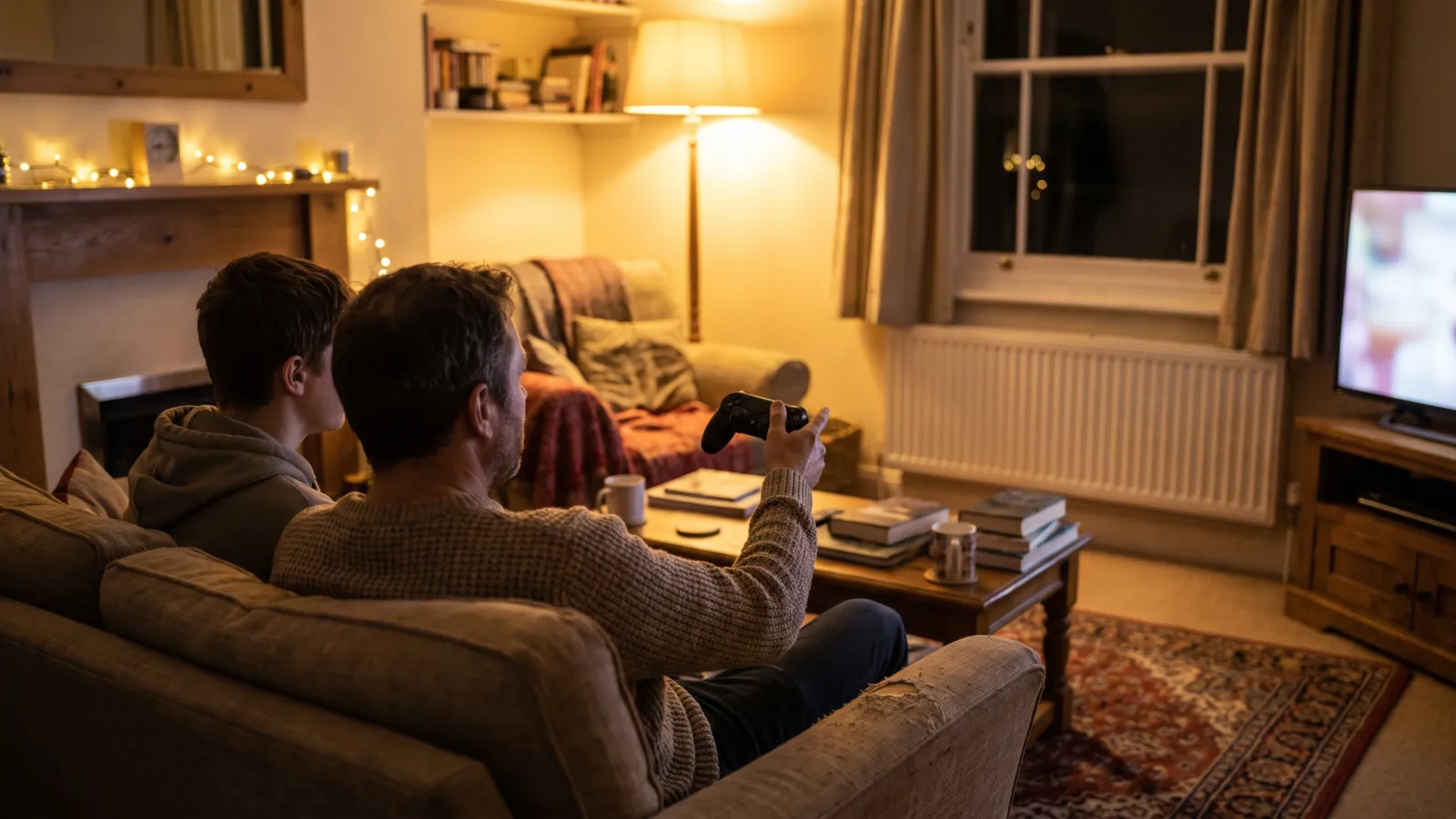
- All three consoles work the same way: the child gets their own account inside a family group, and a parent manages it from a phone app. Nintendo's is the Switch Parental Controls app, Sony's the PlayStation Family app, Microsoft's the Xbox Family Settings app.
- Four settings do most of the work: a ceiling on game age ratings, a daily play-time limit, purchase approval or a spending cap, and a restriction on chat with strangers.
- Spending is the one parents forget. On PlayStation a child's purchases come out of the family manager's wallet unless a monthly limit is set; Xbox and Nintendo have an ask-to-buy flow and account restrictions.
- Do it before Christmas morning. Setting up a child account takes twenty minutes and needs the parent's email; doing it after the child has already made a grown-up account means starting again.
- The controls are a floor, not a substitute. The NSPCC's advice is to ask your child to show you the games they play and explore the settings together, especially for games like Roblox and Minecraft that have their own controls.
Why console settings are a day-one job
A new console arrives wanting to be set up, and the setup screens are designed to get a player into a game quickly. If the child does that part, the account that results is an adult one in their name, with no age limits, open chat and a card attached once someone buys the first game. Undoing that later means creating the right kind of account and losing progress, which is a harder conversation than doing it right first.
All three makers now use the same structure. A parent has their own account, creates a family group, adds the child as a child member, and manages that child's settings from a phone app or a website. The settings follow the child's account: PlayStation's support page notes that "Parental controls are tied to accounts. If you change a setting on one device, this affects the other devices as well." Xbox says only a parent in the family group can change a child's settings, and Nintendo says most Switch controls apply to the whole console.
What follows is how each platform handles the four things that matter for a present: what games the child can play, how long, what they can spend, and who they can talk to. The details change with software updates, so treat this as the map and check the maker's current page when you set up. Our gifts for a gamer guide lists which console and which games suit which age.
Our picks for this guide
 Photo: Amazon
as of 23 Nov 2026, 18:27 GMT · Details
Product prices and availability are accurate as of the date/time indicated and are subject to change. Any price and availability information displayed on Amazon.co.uk at the time of purchase will apply to the purchase of this product. Photo: Amazon
as of 23 Nov 2026, 18:27 GMT · Details
Product prices and availability are accurate as of the date/time indicated and are subject to change. Any price and availability information displayed on Amazon.co.uk at the time of purchase will apply to the purchase of this product. Photo: Amazon
as of 23 Nov 2026, 18:27 GMT · Details
Product prices and availability are accurate as of the date/time indicated and are subject to change. Any price and availability information displayed on Amazon.co.uk at the time of purchase will apply to the purchase of this product.Nintendo Switch
The Switch is the console most often bought for younger children, and its controls are the simplest. There are two layers. On the console itself, under System Settings, you can set age rating restrictions, limit communication between players and block posting to social media. Nintendo's support page describes these as available "directly on the system and through the smart device app."
The second layer is the free Nintendo Switch Parental Controls app for a phone. Nintendo says it "provides access to the most restriction options and features", and lists the extras it adds: "Set limits on play time, view gameplay history, and allow individually selected games to ignore restrictions." The app is also where you set a daily play-time limit with an alarm, and where you can share control with a second parent.
An important Nintendo quirk: most of these settings are for the console, not for each player. Nintendo warns that "Many Parental Controls are set system-wide, not for each individual user. For those controls, the same restrictions will apply to everyone who uses the system, so they should be set with the youngest player in mind." If a parent shares the Switch, that means entering the PIN to play a 16-rated game in the evening.
Spending on the Switch is managed separately, through the Nintendo Account website. Nintendo says: "Restrictions on viewing and purchasing content in the eShop, friend suggestions, and sharing information with third-parties are managed through Nintendo Account settings." A child account in a Nintendo family group cannot buy from the eShop without the parent's say-so, and the parent can set whether the child can see the store at all. Preset restriction levels by age (Nintendo offers 'choose from preset restrictions by age or select Custom Settings') make a sensible starting point for a first setup.
- Create your own Nintendo Account and a family group, then add the child
- Set a restriction level by age on the console, then refine in the app
- Set a daily play-time limit and bedtime alarm in the app
- Turn off communication with other players for younger children
- In Nintendo Account settings, restrict eShop viewing and purchasing
PlayStation
Sony's controls run through a family on PlayStation Network. Its support page says: "Before setting parental controls, you need to create a family and add your child as a family member." Once that is done, the parent can manage the child from the PlayStation Family app on a phone, from the account website, or on the console under Settings, Family and Parental Controls.
Two setup details catch people out. Sony says: "To make sure parental controls are effective, make sure your child has completed email verification and is signed in on their console." And: "Change your console settings to prevent a child from changing parental controls." That second one is a separate setting on the PS5 that requires the parent's passcode to alter restrictions; without it, a determined child can simply switch the limits off.
Spending is where PlayStation differs most. Sony's page states: "When your child buys content from PlayStation®Store on their account, payment is taken from the family manager’s wallet." That is the parent's wallet. The protection is a monthly spending limit per child, set from the app, the website or the console under Parental Controls, Monthly Spending Limit. Set it to zero if you want every purchase to go through you.
Chat and content sharing are controlled together. Sony explains that when you set Communication and User-Generated Content to Restrict, the child is blocked from "Sending text messages and voice chatting with other players" and from sharing content they create, and from linking third-party chat apps. The child can request an exception for a particular game, which the parent approves or not. Sony also notes that "If your child links a third-party service or app to their account, you receive a notification." Age ratings for games are set per child, and the parent decides who can change the child's privacy settings.
Xbox
Microsoft's version is a Microsoft family group, managed through the Xbox Family Settings app or the family page on the Microsoft account website. Xbox describes the scope: "Manage screen time, privacy settings, social interactions, access to mature content, and enable monitoring" across Xbox consoles and Windows PCs, because the same child account carries its settings to a PC.
Screen time on Xbox is flexible. Microsoft says: "Customise how much time is spent each day of the week and when the device can be used. The screen time countdown starts once the person is signed in and stops when signed out." You can also set a time limit on a specific game or app, and the app lets you pause play remotely: the child "will see the “your screen time is up” message until you decide they can play again."
Purchases use Ask a Parent. Microsoft says: "With Ask a Parent, you’ll receive an email when your kids want to purchase a game or app and need your help to fund the purchase." The alternative is an allowance: parents can add money to the child's account from the app, which Microsoft says "allows parents to decide how much their kids can spend", and review the child's spending history. The family page also points parents to the Xbox Game Studios loot box policies, which is worth a read if a game relies on random paid items.
Content filters work by age: "Parents can filter or allow games, apps and websites based on the age of their children", with children able to request access that the parent approves or declines. For chat, the parent decides "who can communicate with your child" and whether they can join multiplayer games, clubs, broadcast or add friends. One useful detail for the most-asked-about game: the app lets you "Allow an exception for Minecraft, even if your child does not have permission for online multiplayer with other games."
The four settings to get right
Age ratings first. Every console can refuse to run games above a PEGI age you choose. Set it to the child's age, then relax it game by game if you decide a specific title is fine. Our separate guide to PEGI age ratings explains what each level means and what the content descriptors tell you. The NSPCC's advice for Minecraft applies to anything: "You can check age recommendations for Minecraft and other games on the Pan European Game Information (PEGI) website."
Play time second. All three let you set a daily limit and a cut-off time. The limit will provoke arguments in the first fortnight and then become normal. A limit that applies every day, with a slightly longer one at weekends, is easier to hold than an ad hoc rule.
Spending third, and this is the one to double-check. The question to ask on each platform is: if my child presses 'buy', where does the money come from? On PlayStation it is the family manager's wallet unless a monthly limit is set. On Xbox it is the child's own balance or an Ask a Parent email. On Nintendo the child account cannot buy without the parent's approval if eShop purchasing is restricted. Whatever the platform, do not store a card on the child's own account.
Chat fourth. For primary-age children the simplest setting is no chat with anyone who is not already a friend, and no voice chat at all. The NSPCC notes that many games let players "chat to other players using messaging platforms for gamers" outside the console's own controls, which is why the console setting is only part of the answer.
- Age rating ceiling set to the child's age
- Daily play-time limit and a bedtime cut-off
- Purchase approval on, or a monthly spending limit; no card on the child's account
- Chat restricted to approved friends, voice chat off for younger children
- Parent passcode set so the child cannot change the restrictions
Games with their own controls: Roblox, Minecraft, Fortnite
The console's settings cover the console. The most popular children's games have their own accounts and their own controls, and those matter just as much because the same account is used on a phone or tablet too.
Roblox is the clearest example. The NSPCC explains: "The platform doesn’t set a minimum age – instead, specific features are hidden or available, depending on the age of the child." Because the controls depend on the age given at sign-up, "it’s important that they sign up with the correct details." Within Roblox, the NSPCC says parents can build a list of allowed games, and "You can also switch off in-app spending or let them set monthly limits." For under-13s, chat can be disabled completely or limited to friends.
Minecraft runs through a Microsoft account on most devices, so the Xbox family settings above apply to it even on a tablet. The NSPCC notes that in the UK children "have to be 13 to have a Microsoft account independent of their parents." Multiplayer on public servers is where strangers appear, which is why Xbox has a specific Minecraft multiplayer exception rather than a blanket on-or-off.
The NSPCC's general suggestion is the best one: "Ask your child to give you a demonstration of the platform to help you understand how they use it." Twenty minutes watching a child play tells you more about what settings you need than any guide, including this one.
Before you wrap it
If the console is a present, do the setup in advance. Unbox it quietly, run the system update (which can take a while on Christmas morning), create the accounts, set the restrictions, then re-box it. The child's first experience is then a console that just works, with the limits already in place rather than imposed a week later.
You will need: your own account on the platform (Nintendo Account, PlayStation Network account or Microsoft account), the child's date of birth, an email address for the child's account that you control, and the phone with the family app installed. Have a card ready for your own account only.
Write the parent PIN down somewhere the child will not find it. On all three platforms the PIN or passcode is what stops the restrictions being changed, and a parent who forgets it will spend an evening on the maker's account recovery pages. Keep the settings under review: a limit that fits a seven-year-old will be wrong by ten, and the point of a child account is that you can loosen it in stages rather than hand over an unmanaged console all at once.
Our picks for this guide
Photo: Amazonas of 23 Nov 2026, 18:27 GMT · Details
Product prices and availability are accurate as of the date/time indicated and are subject to change. Any price and availability information displayed on Amazon.co.uk at the time of purchase will apply to the purchase of this product.Photo: Amazonas of 23 Nov 2026, 18:27 GMT · Details
Product prices and availability are accurate as of the date/time indicated and are subject to change. Any price and availability information displayed on Amazon.co.uk at the time of purchase will apply to the purchase of this product.Photo: Amazonas of 23 Nov 2026, 18:27 GMT · Details
Product prices and availability are accurate as of the date/time indicated and are subject to change. Any price and availability information displayed on Amazon.co.uk at the time of purchase will apply to the purchase of this product.On each platform, ask one question: if my child presses 'buy', whose money is it? On PlayStation a child's purchase comes from the family manager's wallet unless you set a monthly spending limit. Set the limit, or the approval flow, before any card is added, and never save a card on the child's own account.
Questions
How do I set up parental controls on a Nintendo Switch?
Create a Nintendo Account family group, add the child, then use the free Nintendo Switch Parental Controls phone app for play-time limits, age restrictions and communication limits. Nintendo says the app gives the most options. Restrict eShop purchasing in Nintendo Account settings, as that is managed separately.
Can my child spend money on PlayStation without me knowing?
They can if no limit is set: Sony says a child's purchases from PlayStation Store are paid from the family manager's wallet. Set a monthly spending limit for the child in the PlayStation Family app, on the website or on the console under Parental Controls, and set it to zero if you want to approve everything.
How do Xbox family settings work?
Create a Microsoft family group and add the child, then use the Xbox Family Settings app. You can schedule screen time by day, filter games and apps by age, restrict who can chat with the child, and use Ask a Parent or a top-up balance to control spending. The same settings apply on a Windows PC.
Do console parental controls work for Roblox and Minecraft?
Only partly. Roblox has its own account and controls, and the NSPCC notes its features depend on the age entered at sign-up. Minecraft uses a Microsoft account, so Xbox family settings apply even on a tablet, and the Xbox app has a specific Minecraft multiplayer exception.
Do Nintendo Switch parental controls apply to every user?
Mostly yes. Nintendo says many controls are set system-wide rather than per user and should be set with the youngest player in mind. A parent sharing the console enters the PIN to play restricted games.
What age should a child have their own console account?
Any age, as long as it is a child account inside a parent's family group. All three platforms create supervised child accounts; the NSPCC notes UK children must be 13 to have a Microsoft account independent of their parents.
Sources (5)
- Nintendo Support, How to set up, adjust or remove Parental Controls on Nintendo Switch, read 5 November 2026
- PlayStation Support (UK), How to set parental controls on PlayStation consoles, read 5 November 2026
- Xbox (UK), Family settings, read 5 November 2026
- Xbox (UK), Xbox Family Settings app, read 5 November 2026
- NSPCC, Online games, read 5 November 2026
Read next
 Toy safety marks in the UK: what UKCA, CE and the Lion Mark mean, and the age warningWhat the UKCA and CE marks on a toy actually promise, why the maker's address matters as much, how to read the…
 Button batteries and magnets in toys: why they are dangerous, what the law says, what to checkWhy a swallowed button battery or a pair of small magnets is an emergency, what UK rules require of toy makers…
 Buying second-hand toys safely: what to check, recalls, cleaning, and what never to buy usedA practical guide to second-hand toys: the checks that matter, how to search the GOV.UK recall list, how to cl…
 Buying a tablet for a child: kids edition or ordinary tablet, and the controls that matterWhether to buy a kids edition or an ordinary tablet, how Apple, Google and Amazon parental controls compare, w…